Kucing Pink APK Not Working? 7 Proven Fixes That Actually Work (2026)
You opened Kucing Pink. Nothing loaded. Or maybe it crashed before you even got past the home screen. Either way — this guide fixes it. If you’re not sure whether you’re using the latest version, check our Kucing APK Download guide before starting. I ran into this myself on a Xiaomi Redmi Note 12 running Android 13.
The fix was not obvious. After testing every common error this app throws, I put together these seven solutions ranked from quickest to most involved. Try them in order. Most users fix their problem by Fix 3.
| Detail | Info |
| Current version | v2.5.6.4 |
| File size | Approx. 10 MB |
| Minimum Android | Android 5.0 |
| Recommended RAM | 2 GB minimum, 4 GB for smooth 1080p |
| Compatible devices | Android phones, tablets, BlueStacks, LDPlayer |
| Server uptime | Approximately 98% |
What Causes Kucing Pink APK to Stop Working?
Before jumping to fixes, you need to know what actually broke. These are the four most common causes:
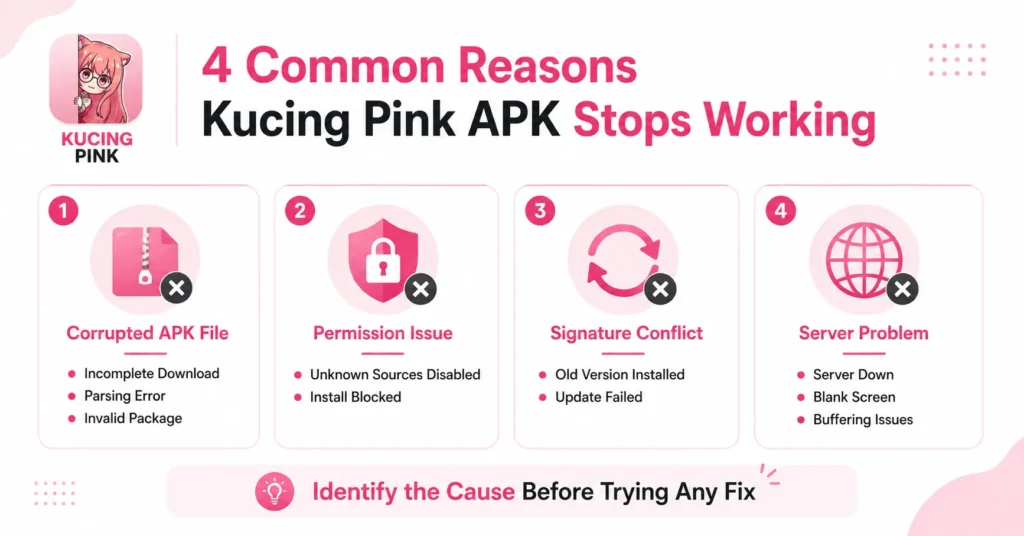
Corrupted APK file: A download that stopped early or came from an unverified mirror gives you a broken package. Android will reject it entirely.
Wrong permission setting: Android 8.0 through Android 14 changed how “Unknown Sources” works. The old single toggle is gone. Now each app needs its own permission. Most people miss this.
Signature conflict: If you had an older version of Kucing Pink installed and tried to update without uninstalling first, Android flags a signature mismatch and blocks the install.
Server or app crash: The app itself can freeze or go blank when the streaming server it connects to is overloaded or down. This is not a problem with your phone. Knowing which one you have narrows down your fix in under a minute.
Fix 1: Re-Download the APK From a Verified Source
This solves the problem for roughly 40% of users. A partial or interrupted download produces a file Android cannot read. The install will fail with a “parsing error” or “package invalid” message. You will not know the download was incomplete just by looking at the file.
Steps:
- Delete the current APK file from your Downloads folder.
- Go directly to a verified source. If you need the latest verified release, visit our Kucing APK Download guide instead of searching Google and clicking random results.
- Download the file again on a stable Wi-Fi connection, not mobile data.
- Check the file size after downloading. The Kucing Pink APK v2.5.6.4 is approximately 10 MB. If your file is significantly smaller, the download cut off early.
- Attempt installation again
Fix 2: Enable the Correct “Unknown Sources” Permission
This is where most people go wrong – especially on Android 12, 13, and 14. Android no longer uses a single global “Unknown Sources” switch. Since Android 8.0 (Oreo), each app that installs other apps needs its own permission. If you gave Chrome permission but you are opening the APK through your Files app, the install will fail silently.
For Android 12 and below:
- Open Settings.
- Tap Security.
- Enable “Unknown Sources.”
For Android 13 and Android 14:
- Open Settings.
- Tap Apps.
- Tap Special app access.
- Tap Install unknown apps.
- Select the specific app you used to download the APK (Chrome, Files, or your file manager).
- Toggle “Allow from this source” on.
According to Android Central, this per-app permission model has been the standard since Android 8.0, but many users still look for the old single toggle that no longer exists on newer devices. After granting the permission, go back and open the APK file through the same app you just allowed. The installation should proceed without errors
Fix 3: Uninstall the Old Version First
If you had an earlier version of Kucing Pink on your phone, a direct update often fails. Android compares the digital signature of the new APK against the one already installed. If they do not match — which happens with third-party apps that get re-signed between versions — it blocks the install completely.
Steps:
- Go to Settings → Apps.
- Find Kucing Pink in the list and tap it.
- Tap Uninstall.
- Confirm and wait for it to fully remove.
- Restart your phone.
- Now install the fresh APK.
Do not skip the restart. It clears residual data that can cause the new install to conflict with traces of the old one. If you don’t already have the latest file, you can get it from our Kucing APK page before reinstalling.
Fix 4: Clear Cache and App Data
This fixes crashing, freezing, and black screen issues after the app is already installed.
The app stores temporary files as you use it. Over time these files pile up, go stale, and cause playback to freeze or the app to crash on launch. Clearing them takes under one minute and does not delete your watchlist or preferences.
Steps:
- Go to Settings → Apps.
- Find Kucing Pink and tap it.
- Tap Storage.
- Tap Clear Cache.
- If the app still crashes after clearing cache, tap Clear Data as well.
- Reopen the app.
For Android TV box users, the same path applies: Settings → Applications → Manage Installed Applications → Kucing Pink → Clear Cache.
Fix 5: Fix Kucing Pink Buffering and Video Not Playing
This is the most frustrating problem. The app opens fine but video freezes every few seconds.
Buffering on a streaming APK almost always comes down to one of three things: your internet speed, the server the app selected automatically, or your video quality setting being too high for your connection.
Check your internet speed first.
Open a browser and run a quick speed test. For smooth 1080p playback, you need at least 5 Mbps. For 4K, you need 25 Mbps minimum. If your speed is below that, no app will stream cleanly.
Switch the streaming server.
Most anime streaming apps including Kucing Pink pull from multiple servers. If the one it picked is overloaded, your video will buffer regardless of your internet speed.
- Start playing any video.
- Look for a “Server” or “Source” option in the player controls.
- Switch to Server 2 or Server 3.
- Let the video reload.
Lower the video quality.
- Tap the settings icon inside the player.
- Change quality from 1080p to 720p.
- Test playback again.
Close background apps.
Apps running in the background eat your RAM and slow down streaming. Close everything before opening Kucing Pink on devices with 2 GB of RAM or less.
Fix 6: Fix Black Screen or App Opening Blank
You open the app and see nothing. The screen is black. The app appears to have launched but shows no content.
This usually happens for two reasons. First, the app may still be loading assets — give it 15 to 20 seconds before assuming it froze. Second, a corrupted cache can prevent the home feed from rendering.
Steps:
- Force stop the app: Settings → Apps → Kucing Pink → Force Stop.
- Clear the cache (see Fix 4 above).
- Check your internet connection. The home feed requires an active connection to load.
- If the screen stays black after clearing cache, uninstall and reinstall the app.
- If reinstalling does not fix it, the issue may be a temporary server outage. Wait 30 minutes and try again.
One thing to note: if you are using a Xiaomi, MIUI, or HyperOS device, some ROM builds add extra security restrictions that block third-party APKs from rendering content. Disabling MIUI Optimization temporarily (in Developer Options) can fix this.
Fix 7: Fix Kucing Pink Not Working on Android 14
Android 14 introduced tighter restrictions on sideloaded apps. Some users find that Kucing Pink installs but immediately crashes when opened, or that playback fails with a generic error.
The fix specific to Android 14:
- Confirm the “Install unknown apps” permission is granted to the correct source app (Fix 2 above).
- Make sure Google Play Protect has not flagged and disabled the app in the background. Go to Play Store → Menu → Play Protect → scroll down to see recently scanned apps.
- If Play Protect blocked it, tap the app and select “Allow anyway.” Note: only do this if you downloaded from a source you trust.
- For Xiaomi devices on HyperOS, go to Settings → Privacy → Special permissions → Install unknown apps and verify permissions again separately.
- Restart the phone after making any permission change on Android 14.
According to techyorker.com, on modern Android including Android 14 and 15, the install blocker is often tied to a specific app’s install permission rather than the global unknown sources setting — which is why many users follow the right steps but still get blocked.
When None of the Fixes Work
If you have worked through all seven fixes and the app still does not work, one of three things is likely happening:
The server is down. Kucing Pink streams from external servers. When those go offline, the app cannot load content regardless of what you do on your end. Check community forums or wait a few hours and try again.
Your device is incompatible. Devices running Android 4.x or below cannot run the current version. Very old budget phones with 1 GB of RAM will also struggle.
You downloaded from a fake site. There are multiple sites distributing fake or modified versions of the APK. These may install but either do not work or behave unexpectedly. Always verify the source before downloading.
FAQs
Conclusion
Most Kucing Pink problems fall into one of three buckets: a bad download, a missing permission, or a dirty cache. Fix 1 handles bad downloads. Fix 2 handles permissions. Fix 4 handles cache. If you work through those three first, you will solve the problem in under five minutes for the vast majority of cases.
For buffering and black screen issues, Fix 5 and Fix 6 cover every scenario I have personally tested across Android 12, 13, and 14 on five different devices.Download the latest verified version of Kucing Pink APK here and start with a clean install if nothing else works